

Graylog 6.3 Log Source Integration
Introduction
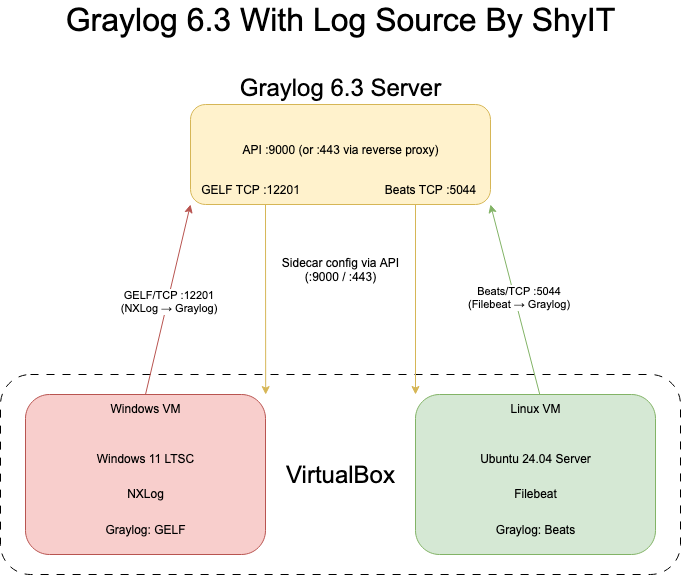
This article is part of the LAB | Cybersecurity series. Ubuntu & Windows are used as log sources, with Graylog Sidecar for centralized configuration/management of agents, and Filebeat / NXLog as the log shippers. Filebeat compensates for syslog’s limitations, and NXLog addresses Windows’ lack of a native log shipper.
Overview
Graylog Sidecar
Sidecar is not a log collector. It’s an agent manager installed on each source host.
It pulls the Collector Configuration you define in the Graylog UI from the server and applies it to the actual agents (e.g., Filebeat, NXLog).
Filebeat
Filebeat is a lightweight log shipper designed for Linux. Compared with syslog, its biggest advantage is reliable delivery/retry. Traditional UDP/514 does not care about packet loss, while Filebeat supports a broad range of inputs.
NXLog
NXLog excels at reading Windows Event Logs and can transform them into structured GELF for Graylog—this is its biggest advantage in my view. There can still be quirks when parsing Chinese log content.
Lab Topology
Since I don’t have any additional machines available, I had to install the log sources on a fully virtualized Windows environment using VirtualBox.
Note: Need more on virtualization? See my contribution on WIKI.
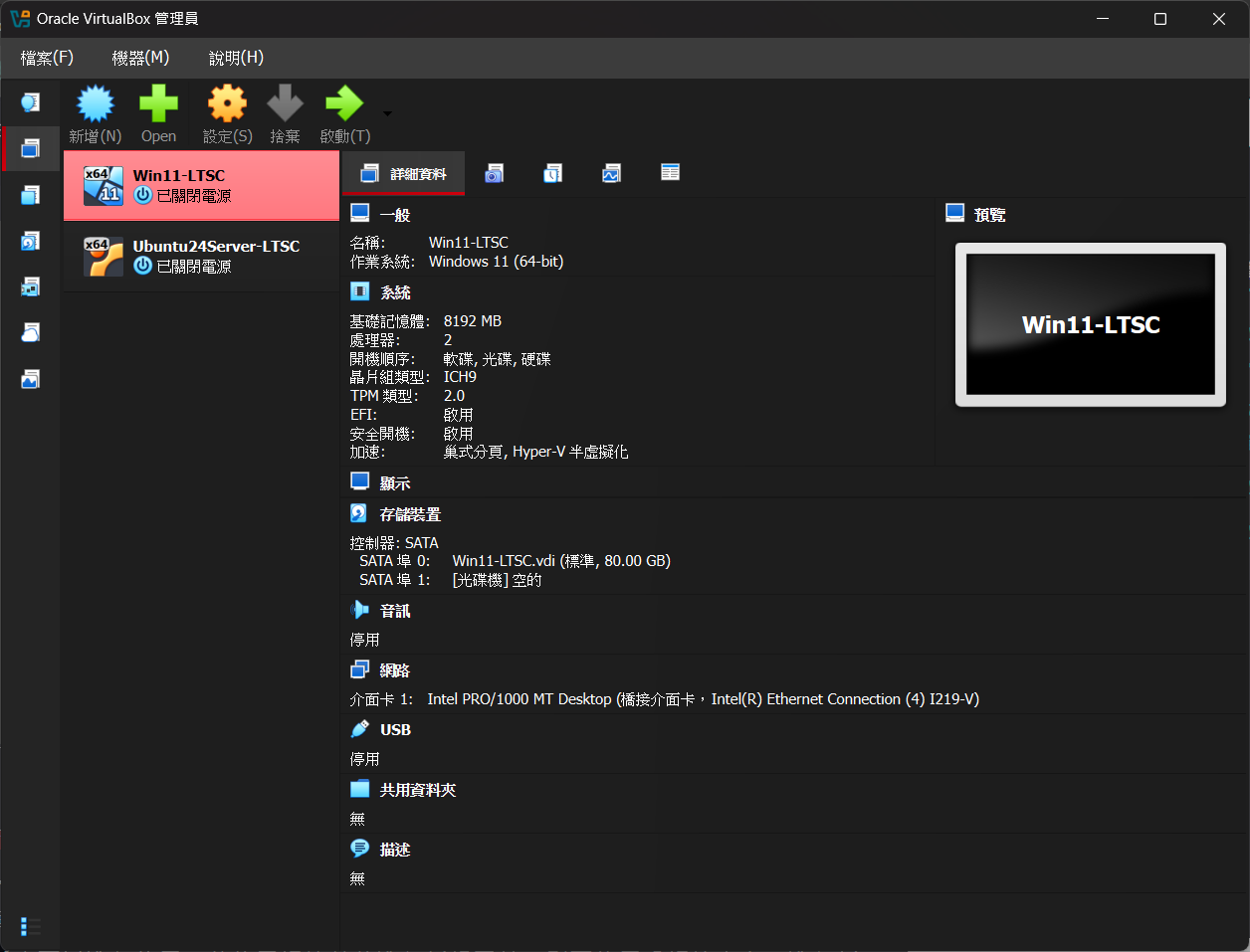
VM Specs
Windows
vCPU: 2
RAM: 8G
HDD: 80G
OS: Windows 11 LTSC
No audio, no USB
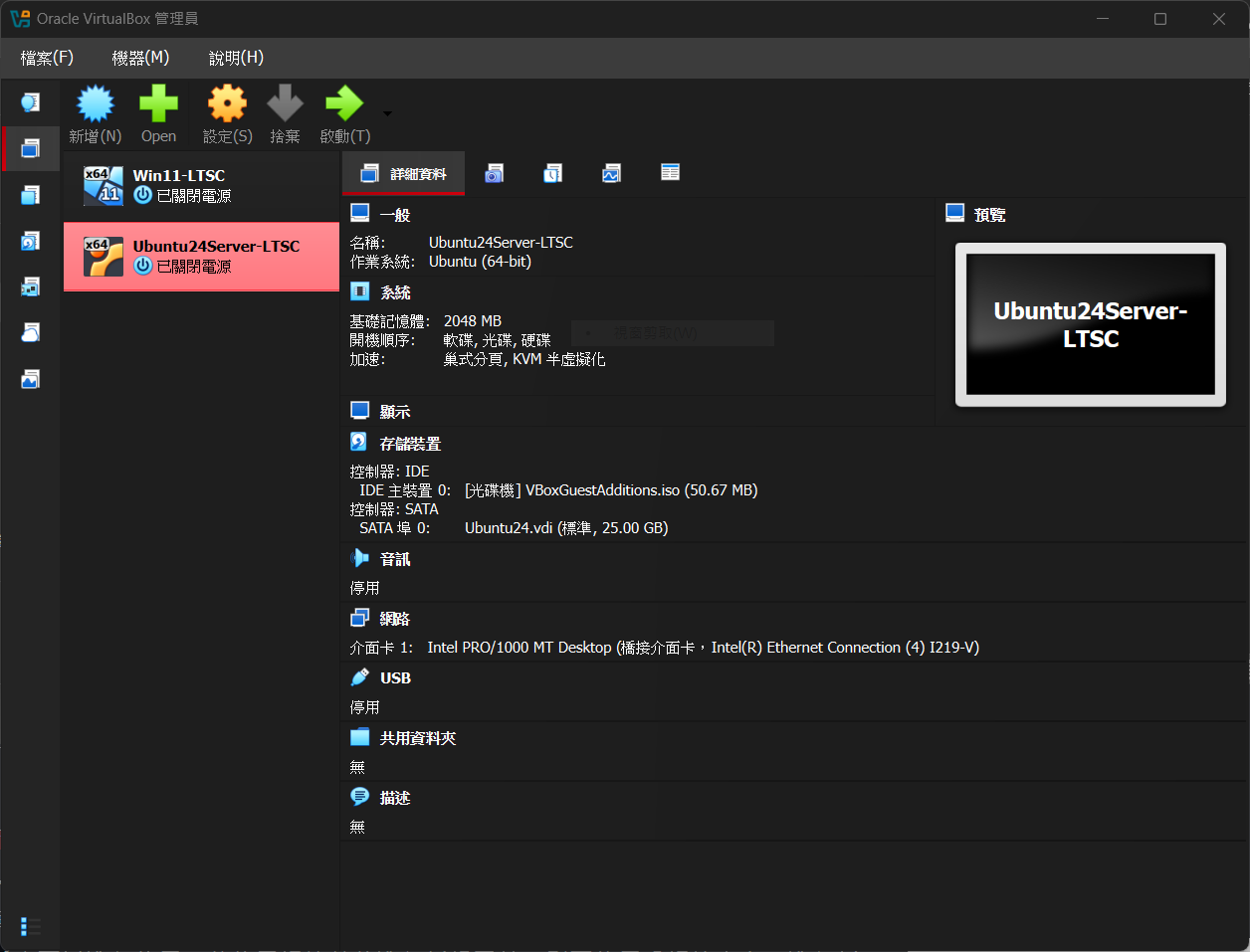
Linux
vCPU: 1
RAM: 2G
vRAM: 2G
HDD: 25G
OS: Ubuntu 24.04 Server LTS
No audio, no USB
Install VirtualBox Guest Additions
The Server edition only has a CLI. Installing Guest Additions mainly helps with shared folders and time sync.
sudo apt update
sudo apt install -y virtualbox-guest-utils
# If you are on a Desktop edition:
sudo apt install -y virtualbox-guest-x11
sudo reboot
# Check the service
systemctl status virtualbox-guest-utils.service
sudo systemctl enable --now virtualbox-guest-utils.service
Set the timezone
sudo timedatectl set-timezone Asia/Taipei
Installation
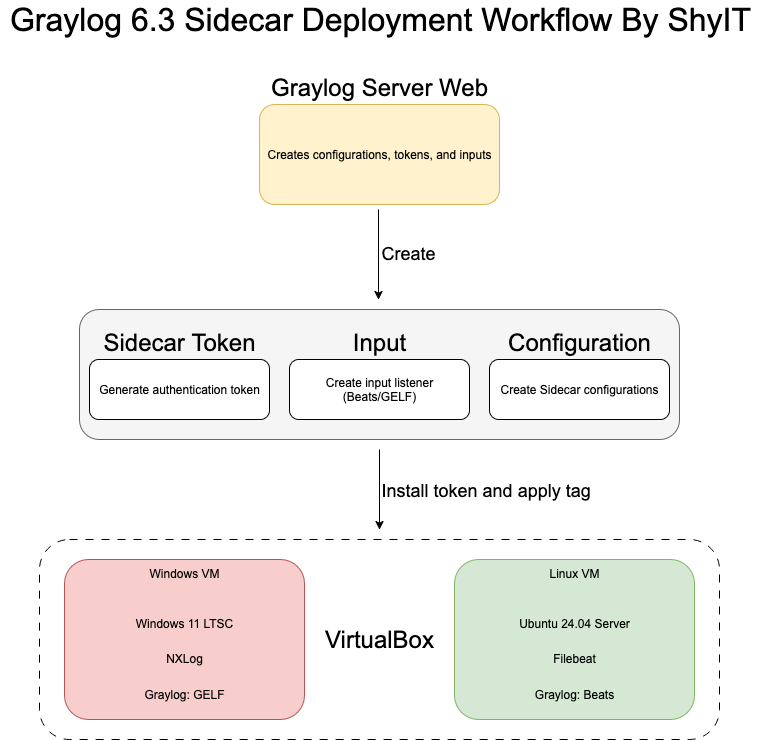
Graylog Server Settings
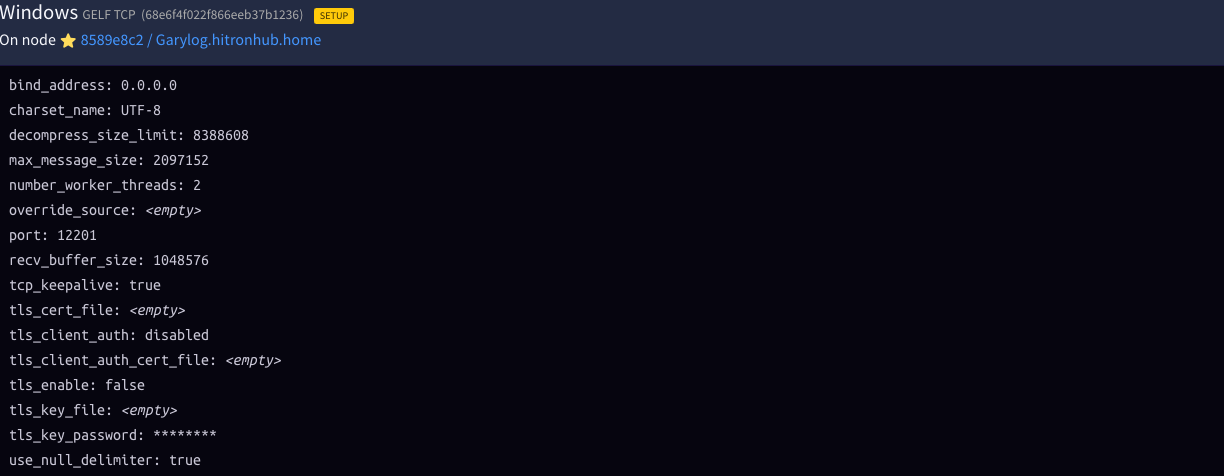
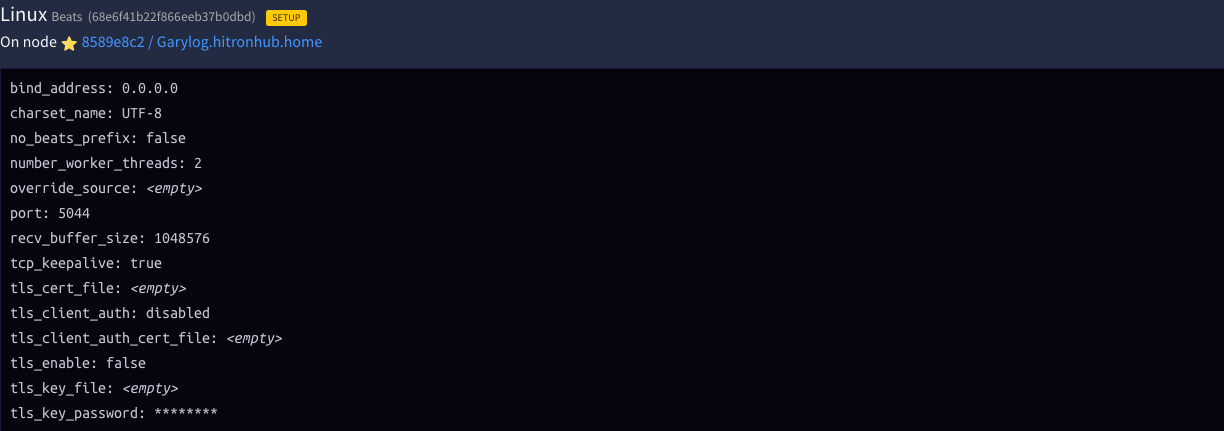
1) Create Beats & GELF inputs
System → Inputs → Launch new input
Purpose of GELF & Beats:
GELF TCP: for NXLog (Windows)
Beats TCP: for Filebeat (Linux)
Other options:
# Leave unchecked unless you operate multiple Graylog nodes
Global:
# Allow all source IPs
Bind address: 0.0.0.0
# This corresponds loosely to CPU threads, but it’s actually managed by the Java thread pool
Threads: 2
# Keep the TCP session alive
TCP keepalive: checked
Click More Actions and leave Setup mode.
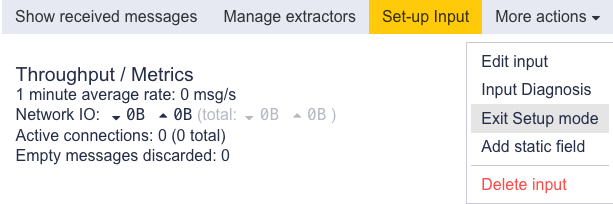
Open the ports for your Inputs.

2) Generate a Sidecar API Token
System → Sidecars
Click Create or reuse a token for the graylog-sidecar user. You’ll use this token in each host’s sidecar.yml.
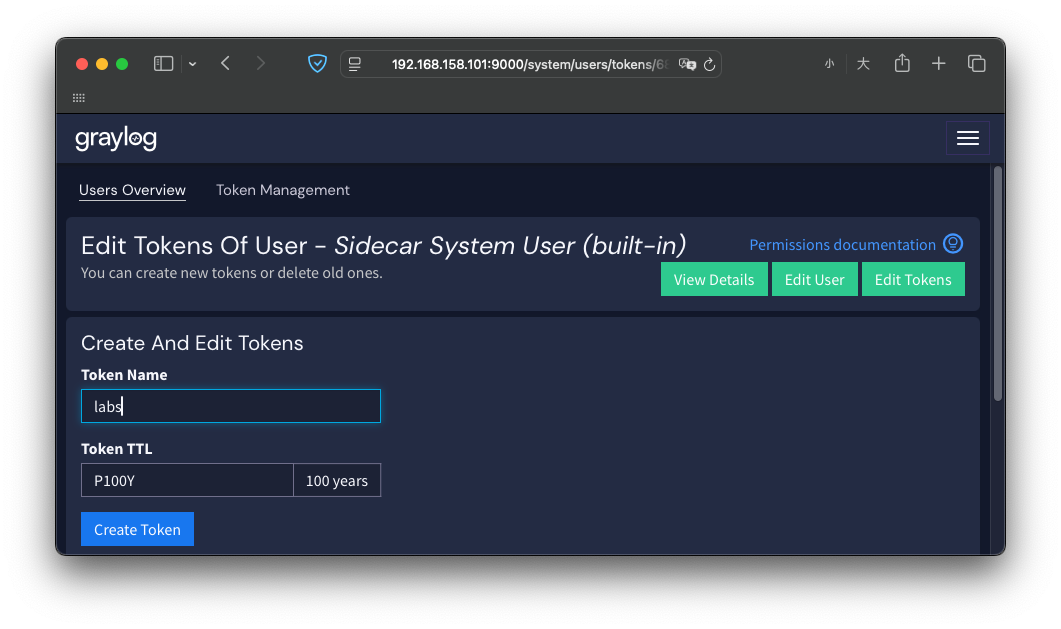
Note: Graylog supports multi-user administration. In practice, you should avoid using the built-in user’s token. Create a dedicated service account instead; you can also integrate with AD.
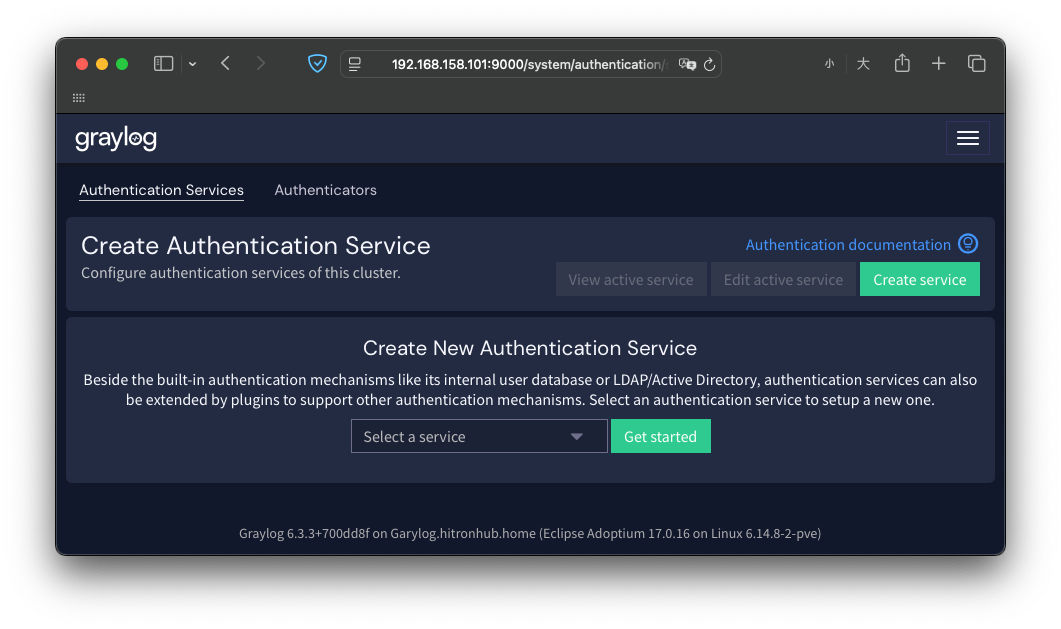
3) Create Sidecar Configurations
System → Sidecars → Configurations → Create configuration
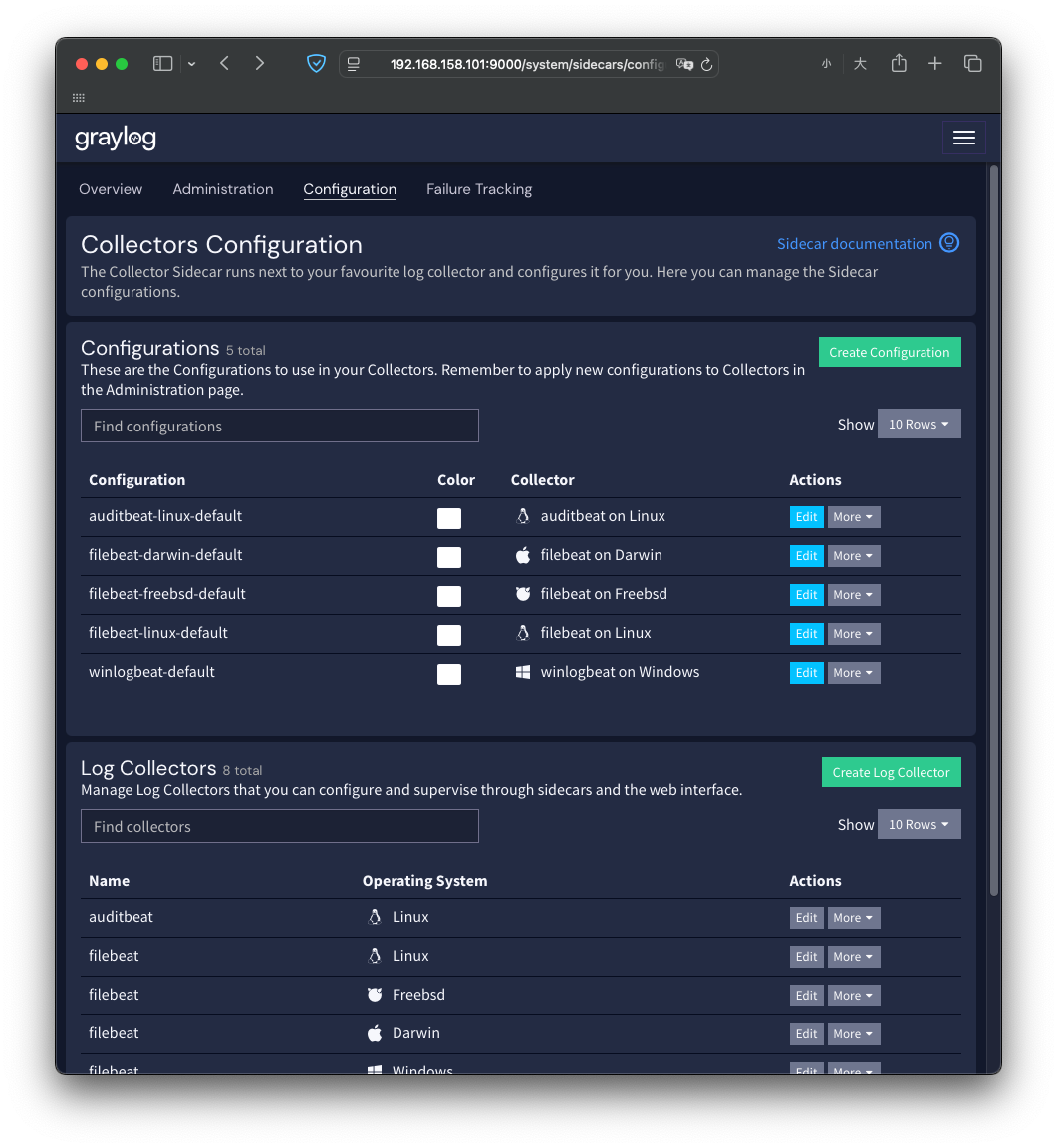
You’ll see many built-in samples; ignore them for now and create two configurations:
Windows
Name: NXLog-Windows
Tags: LabsWindows
Collector: nxlog on Windows
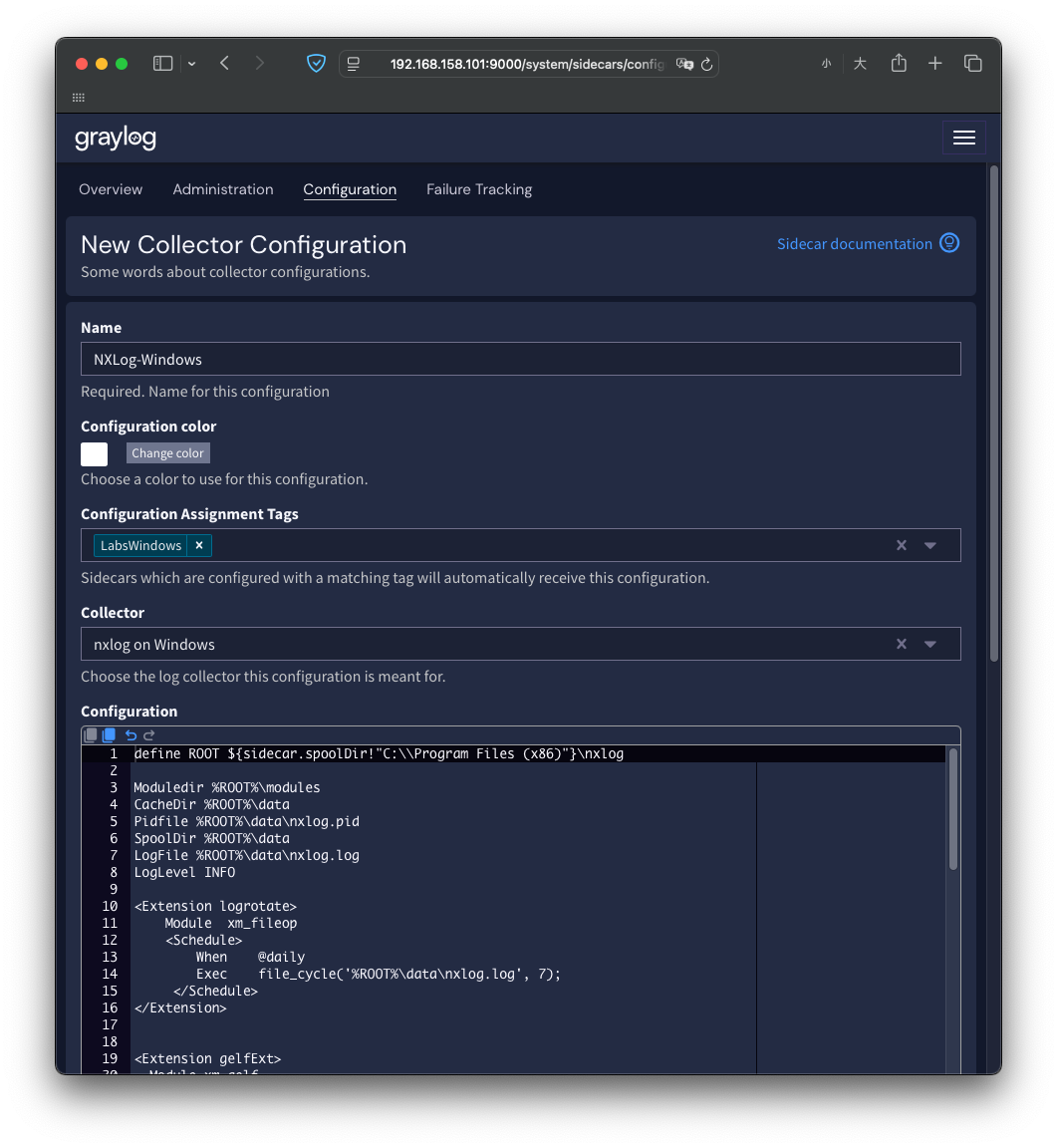
Below is my NXLog-Windows Configuration. You can copy/paste and adjust as needed.
# Directory and file settings pointing to NXLog’s modules, cache, PID, and log files
Moduledir "C:\\Program Files\\nxlog\\modules"
CacheDir "C:\\Program Files\\nxlog\\data"
Pidfile "C:\\Program Files\\nxlog\\data\\nxlog.pid"
SpoolDir "C:\\Program Files\\nxlog\\data"
LogFile "C:\\Program Files\\nxlog\\data\\nxlog.log"
LogLevel INFO

# Rotate NXLog logs daily, keeping up to 7 files
<Extension logrotate>
    Module xm_fileop
    <Schedule>
        When @daily
        Exec file_cycle('C:\\Program Files\\nxlog\\data\\nxlog.log', 7);
    </Schedule>
</Extension>

# Output format: GELF
# Set short_message length to 65536 to prevent truncation
<Extension gelfExt>
    Module xm_gelf
    ShortMessageLength 65536
</Extension>

# Collect Windows system event logs
# The im_msvistalog module captures all event channels
<Input eventlog>
    Module im_msvistalog
    # Check for new events every second
    PollInterval 1
    # Remember the last read position (to avoid duplicates)
    SavePos True
    # Only read new events, not the entire log history
    ReadFromLast True

    # You can enable the XML query below to filter specific log sources or levels
    # <QueryXML>
    #   <QueryList>
    #     <Query Id='1'>
    #       <Select Path='Security'>*[System/Level=4]</Select>
    #     </Query>
    #   </QueryList>
    # </QueryXML>
</Input>

# Collect log files from a specific folder
# If not needed, remove or comment out to prevent NXLog from scanning and erroring
<Input file>
    Module im_file
    # Collect all .log files
    File 'C:\\Windows\\MyLogDir\\*.log'
    # Scan every second
    PollInterval 1
    # Remember the last read position
    SavePos True
    # Read only new data
    ReadFromLast True
    # Do not recurse into subdirectories
    Recursive False
    # Skip filename change checks
    RenameCheck False
    # Add filename as a field in each log entry
    Exec $FileName = file_name();
</Input>

# Output in GELF format via TCP to Graylog port 12201
<Output gelf>
    Module om_tcp
    Host ${user.graylog_host}
    Port 12201
    OutputType GELF_TCP
    <Exec>
        # Graylog identifiers for correlating source and Sidecar
        $gl2_source_collector = '${sidecar.nodeId}';
        $collector_node_id = '${sidecar.nodeName}';
    </Exec>
</Output>

# Routing: Send eventlog to gelf (Graylog)
<Route route-1>
    Path eventlog => gelf
</Route>

# Routing: Send file input to gelf as well
<Route route-2>
    Path file => gelf
</Route>
See Notes .
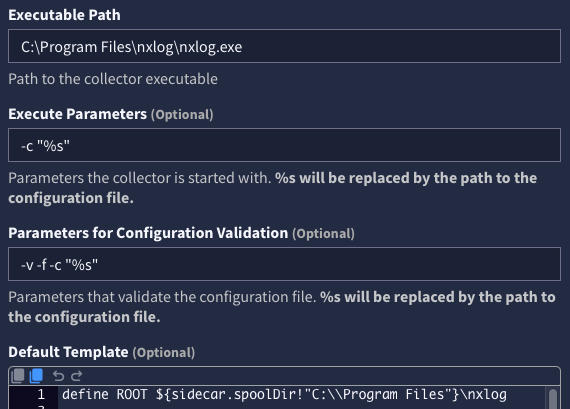
Log Collectors
System → Sidecars → Configurations → Log Collectors → nxlog (Windows)
The installation path is C:\Program Files\nxlog\nxlog.exe without (x86).
Linux
Name: Filebeat-Linux
Tags: LabsLinux
Collector: filebeat on Linux
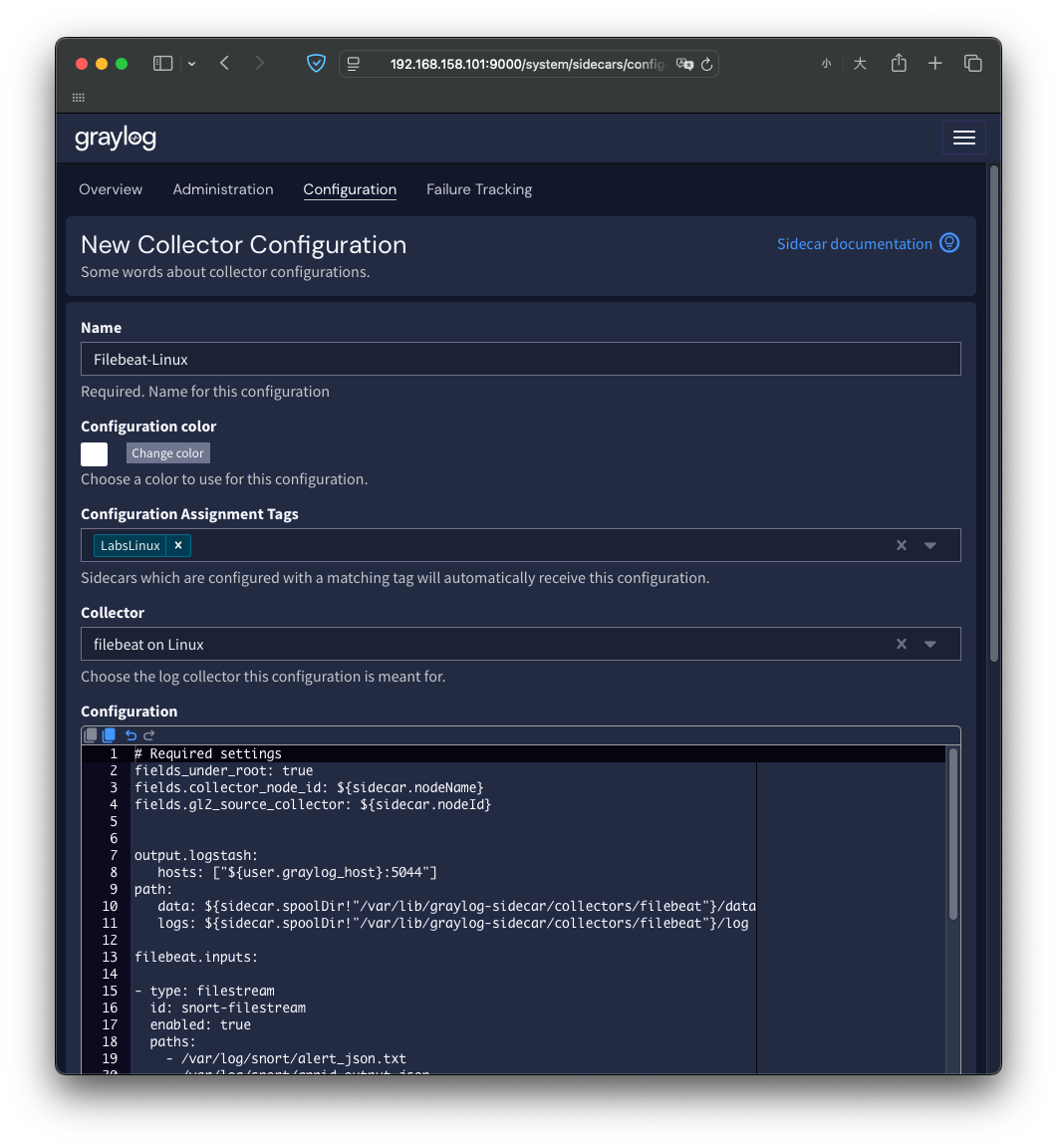
Below is my Filebeat-Linux Configuration. You can copy/paste and adjust as needed.
# Lift fields to the top-level, so entries in "fields" become root fields
fields_under_root: true

# Inject host identity from Sidecar
fields.collector_node_id: ${sidecar.nodeName}
fields.gl2_source_collector: ${sidecar.nodeId}

# Send logs to the Graylog Beats input
output.logstash:
  hosts: ["${user.graylog_host}:5044"]
  ssl.enabled: false

# Directories where Filebeat stores its own state and logs
path:
  data: ${sidecar.spoolDir!"/var/lib/graylog-sidecar/collectors/filebeat"}/data
  logs: ${sidecar.spoolDir!"/var/lib/graylog-sidecar/collectors/filebeat"}/log

# Log harvesting items
filebeat.inputs:
    # Common log files on Ubuntu systems
  - type: filestream
    id: default-filestream
    enable: true

    # Collect the following system-related log files
    paths:
      - /var/log/syslog
      - /var/log/auth.log
      - /var/log/kern.log
      - /var/log/dpkg.log
      - /var/log/faillog
      - /var/log/boot.log
      - /var/log/apt/history.log
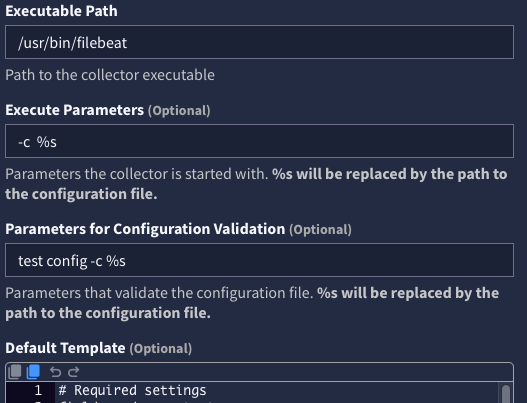
Log Collectors
System → Sidecars → Configurations → Log Collectors → filebeat (Linux)
The installation path is /usr/bin/filebeat.
Agent & Sidecar
Windows — NXLog
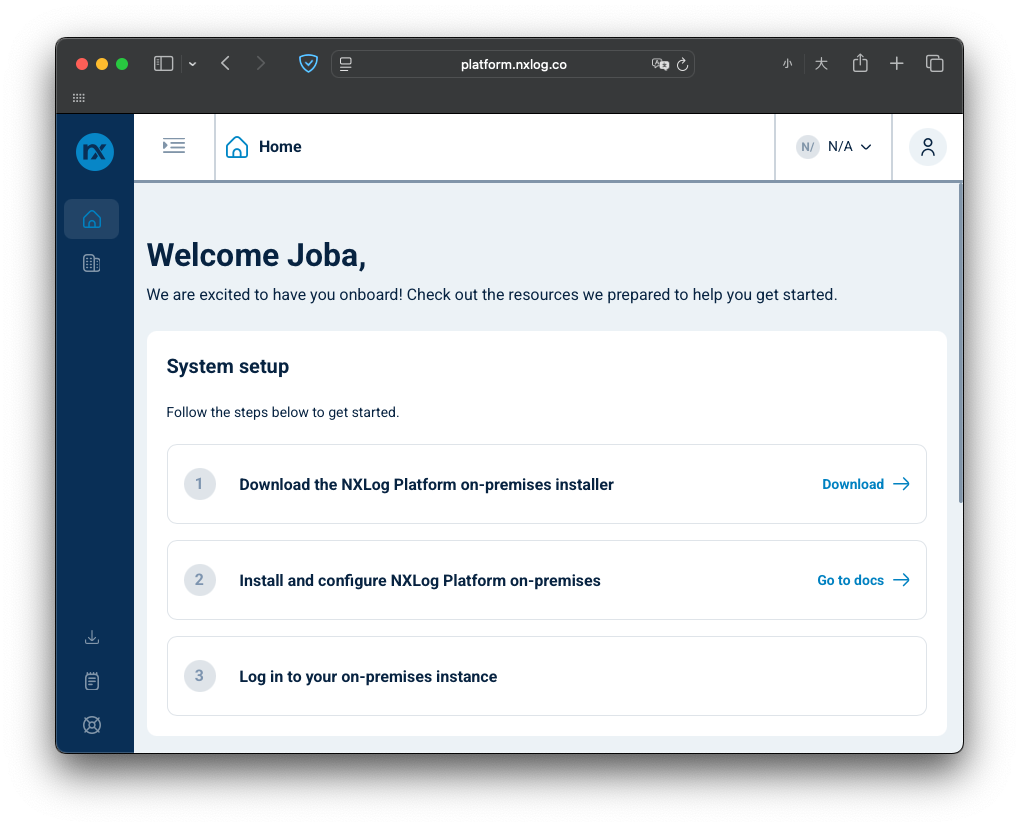
1) Download & install NXLog
You need an NXLog account to download. Use the Community Edition NXLog 6.9.10227.
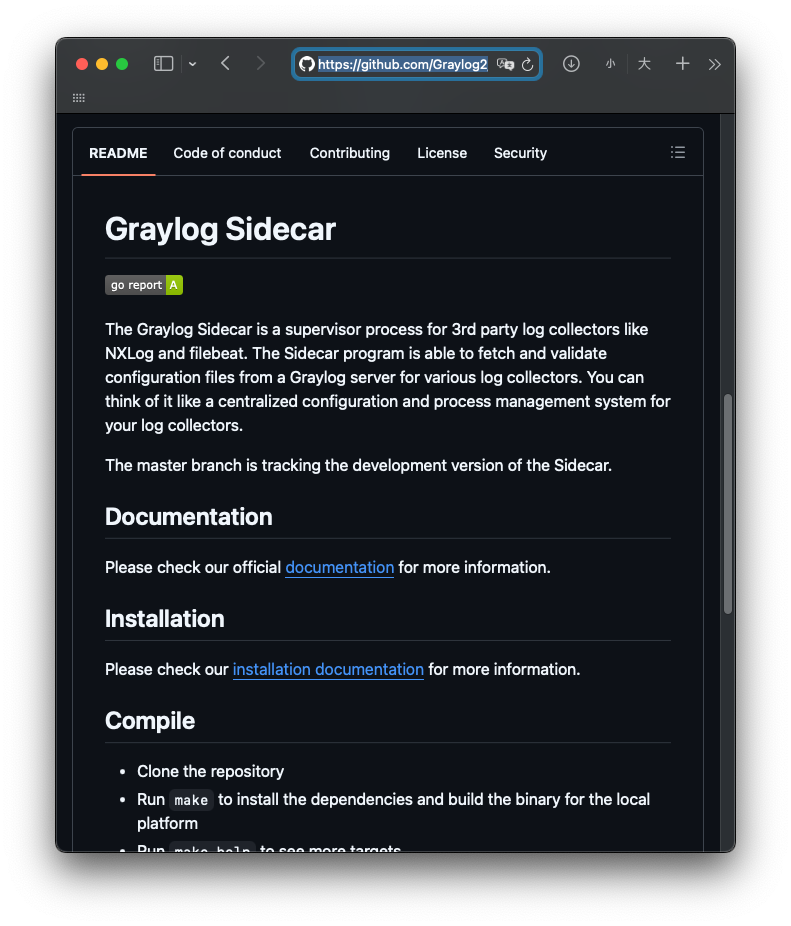
2) Download & install Graylog Sidecar for Windows 1.5.1
https://github.com/Graylog2/collector-sidecar
3) sidecar.yml
Copy C:\Program Files\Graylog\sidecar\sidecar-example.yml → sidecar.yml.
Open it with a text editor as Administrator:
# Graylog API endpoint
server_url: "https://<your-graylog>:9000/api/"

# API Token created in Graylog, used to authenticate the Sidecar
server_api_token: "<your-sidecar-token>"

# The display name of this host in Graylog
node_name: "windows-nxlog"

# Tag(s) for this Sidecar
# Graylog applies Configuration based on these tags
tags: ["LabsWindows"]

# Allowlist of agent executables that Sidecar can manage
# Here we allow the NXLog main binary
collector_binaries_accesslist:
- "C:\\Program Files\\nxlog\\nxlog.exe"
4) Register as a Windows service
# Install Sidecar as a service
"C:\Program Files\graylog\sidecar\graylog-sidecar.exe" -service install

# Then open PowerShell as Administrator to debug/check for errors
cd "C:\Program Files\Graylog\sidecar"
.\graylog-sidecar.exe -service

# If Sidecar runs normally, start the service to keep it running in the background
"C:\Program Files\graylog\sidecar\graylog-sidecar.exe" -service start
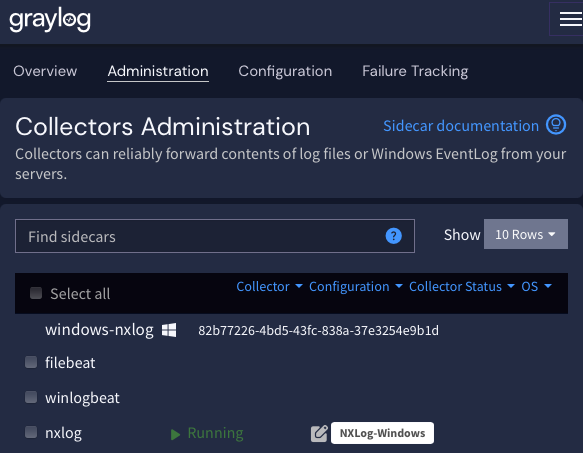
This is what a healthy Sidecar–NXLog looks like.
Linux — Sidecar & Filebeat
1) Install Graylog Sidecar
curl -O -L https://github.com/Graylog2/collector-sidecar/releases/download/1.5.1/graylog-sidecar_1.5.1-1_amd64.deb
sudo dpkg -i graylog-sidecar_1.5.1-1_amd64.deb
2) sidecar.yml
# Graylog API endpoint
server_url: "https://<your-graylog>:9000/api/"

# API Token created in Graylog, used to authenticate the Sidecar
server_api_token: "<your-sidecar-token>"

# The display name of this host in Graylog
node_name: "linux-filebeat"

# Tag(s) for this Sidecar
# Graylog applies Configuration based on these tags
# Remove - default
tags: ["LabsLinux"]

# Allowlist of agent executables that Sidecar can manage
# Recommend also allowing the bundled filebeat path (to avoid accesslist blocks)
collector_binaries_accesslist:
- "/usr/bin/filebeat"
- "/usr/share/filebeat/bin/filebeat"
3) Register as a systemd service & start it
sudo graylog-sidecar -service install
sudo systemctl enable graylog-sidecar
sudo systemctl start graylog-sidecar
Check status & logs
systemctl status graylog-sidecar
sudo journalctl -u graylog-sidecar -f
4) Install Filebeat 9.1.5
# Follow the official instructions or direct .deb install:
curl -L -O https://artifacts.elastic.co/downloads/beats/filebeat/filebeat-9.1.5-amd64.deb
sudo dpkg -i filebeat-9.1.5-amd64.deb
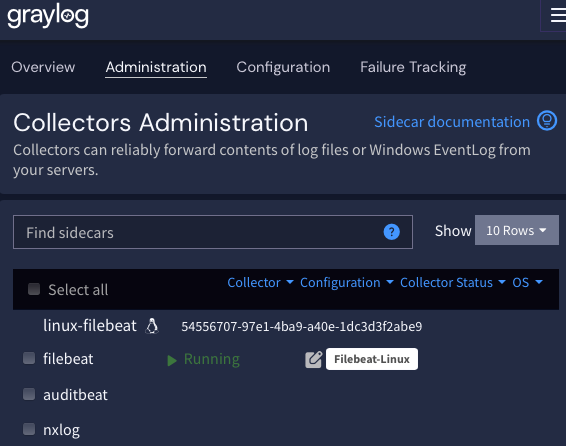
This is what a healthy Sidecar–Filebeat looks like.
Notes
When I first built this configuration, copying from a Raid7 sample threw the error:
[CORE|main] 'define ROOT' refers to a global directive or a keywordI’m not entirely sure why
ROOTwas treated as a global reference; I switched to explicit paths.The Default Template under Log Collectors is merely the preset content when creating a new Configuration.
It does not auto-apply or overwrite anything at runtime.
The settings that actually take effect are the YAML under Sidecars → Configurations (inputs/outputs, etc.), which you assign to hosts via Tags.
References
Graylog Sidecar
Getting Started with Graylog Sidecar
Graylog Inputs
Secure Graylog and Beats Input
Filebeat
Filebeat overview | Filebeat Reference [8.19] | Elastic
Configure the Logstash output | Beats
NXLog
Event Log for Windows 2008/Vista/later (im_msvistalog) | NXLog Platform Documentation
GELF (xm_gelf) | NXLog Platform Documentation
TCP (om_tcp) | NXLog Platform Documentation
Send logs to Graylog | NXLog Documentation